This feature will allow you to setup a user field that contains one or more email addresses to be imported into the To line of the email.
This is a Version 11 Feature. For information about the purchase of Version 11, please contact Sales.
Add a Client level user field with enough character to obtain one or more email addresses. See How to Create a User Variable
After creating the user field, enter an email address. if you are entering more than one email address, please remember to add a semicolon (;) between email addresses
Mass Email
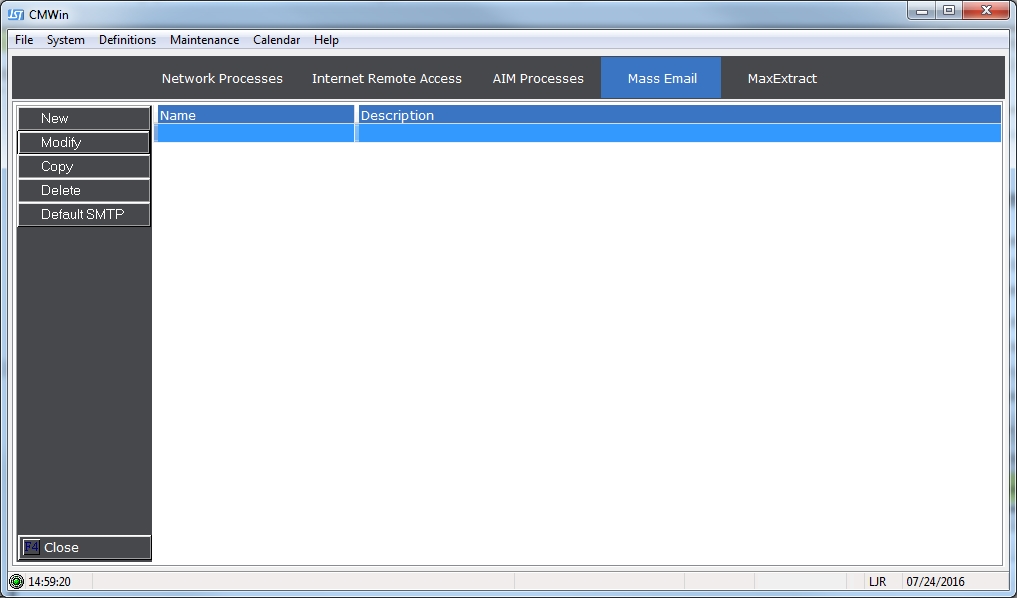
From the Main Screen of CollectMax, click the Network button to display the Network Screen and click the Mass Email Tab.
See Mass Email for information on the full setup of Mass Email Defaults.
On a New or Existing Email Script, select the redesigned Template Tab:
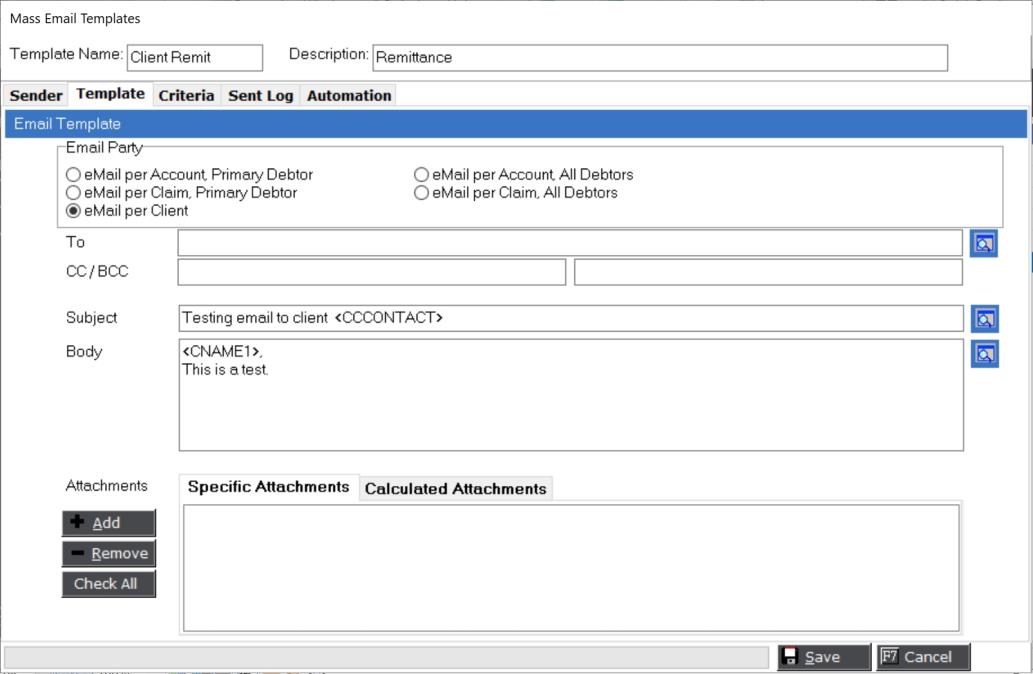
New To and CC/BCC fields have been added to the screen. Blank means they will go to the default email for the Client.

To insert a hardcoded or user field as the To or CC/BCC, click the  button to display the Edit Screen.

Select the Client User Field that you set up to contain one or more email addressed in the Available Variables list. Insert into the To, CC or BCC fields. You can also add hardcoded email addresses or insert other email variables.
Note: If you leave the To address blank the email will be sent to the Client Email Address.
Click the Okay button and continue to setup your Mass Email Template.